Tenant Portal
The tenant portal is what your customers see after they sign up. It lets them manage their LMS subscription, upgrade or downgrade their plan, view invoices, and handle payments — all without contacting you.
Customer Registration Flow
Step 01 — Visit the Pricing Page
Customers visit https://yourdomain.com/pricing to compare plans and click Get Started (or Start Free Trial) on their chosen plan.
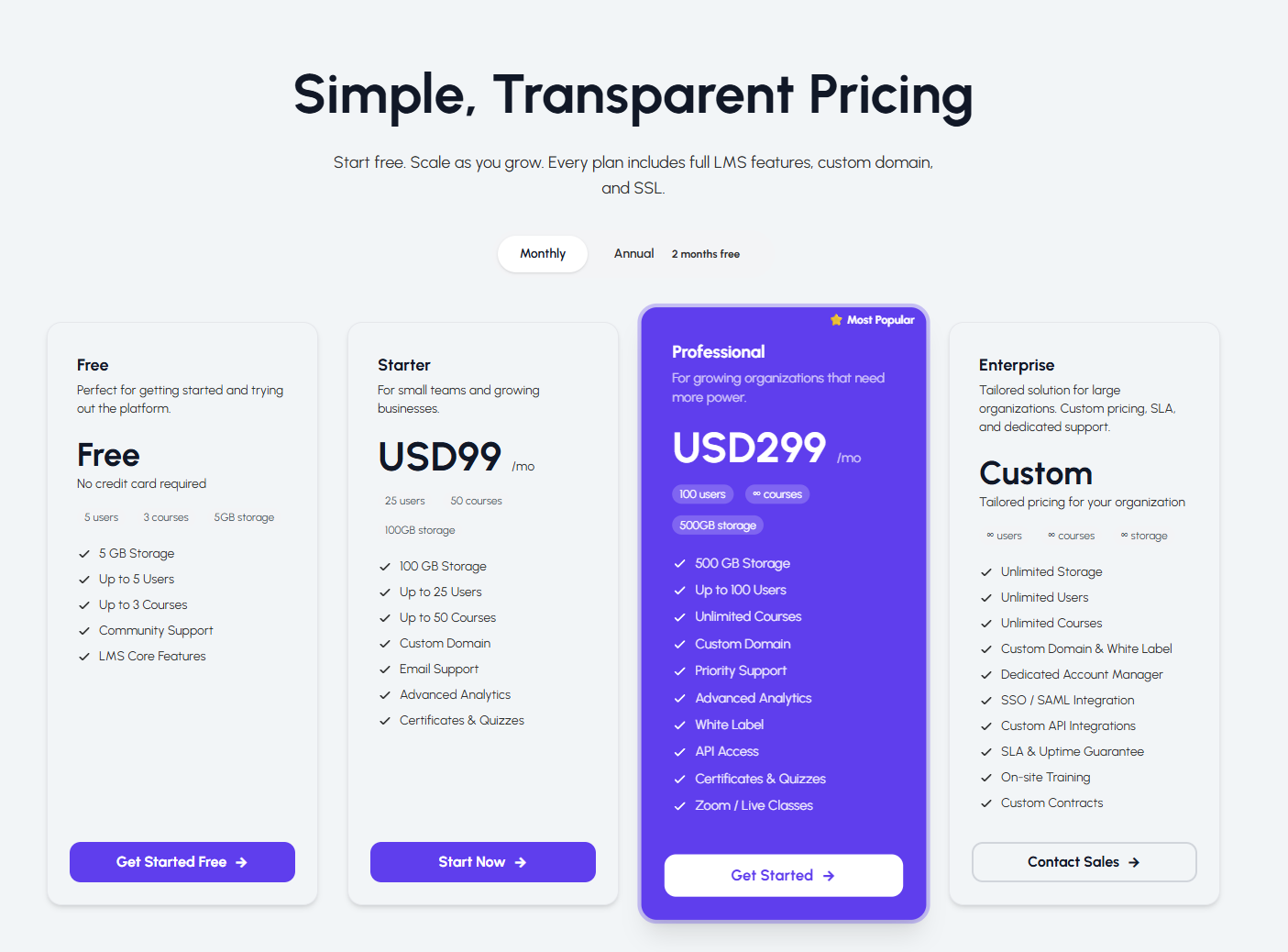
The button links directly to the registration form with that plan pre-selected.
Step 02 — Registration Form
The multi-step registration form at https://yourdomain.com/tenant/register collects:
- Plan selection — pre-filled from the pricing page link
- Account details — full name, email, password
- LMS details — subdomain (e.g.
acme) and school/organisation name - Trial or Pay — choose a free trial OR pay immediately (per your billing settings)
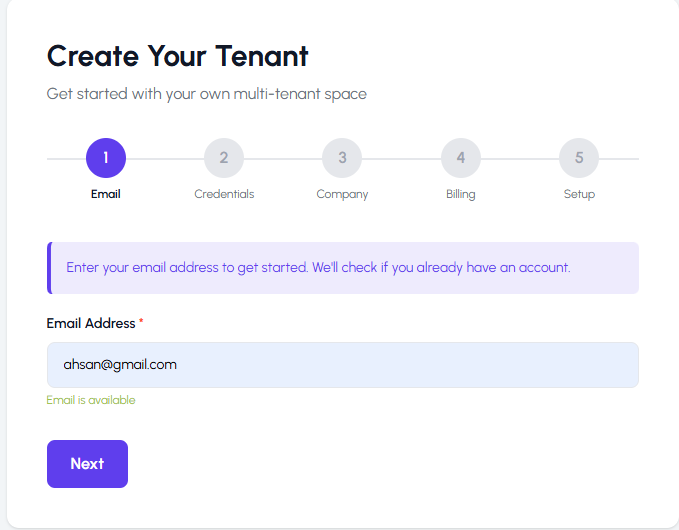
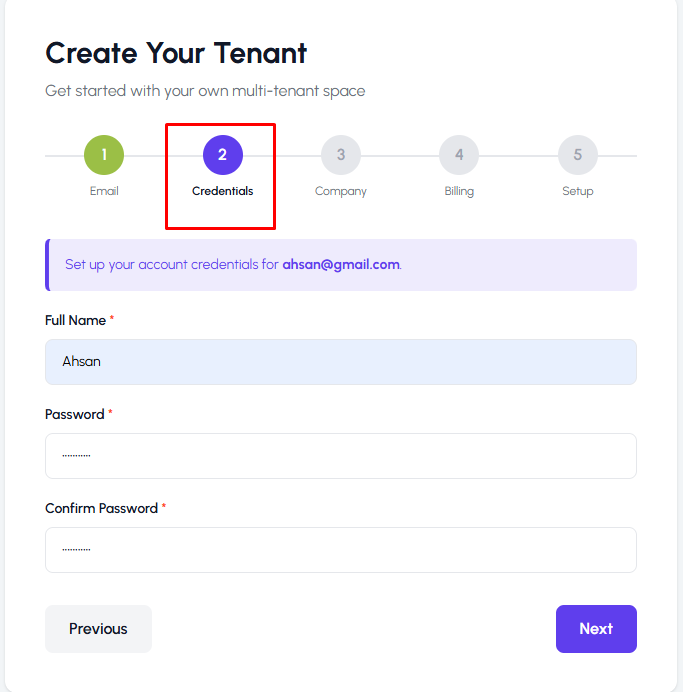
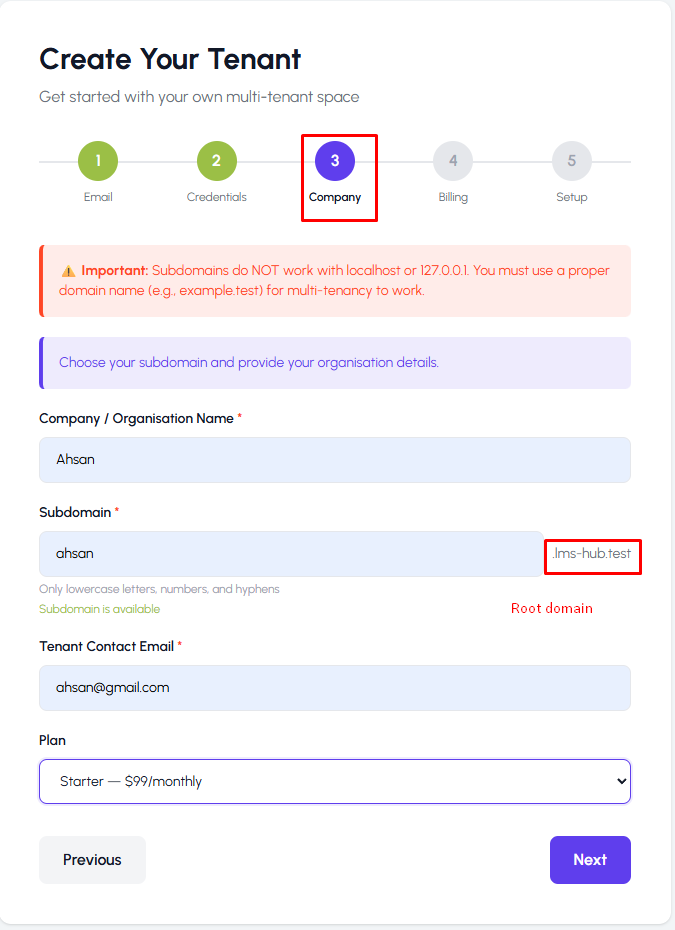
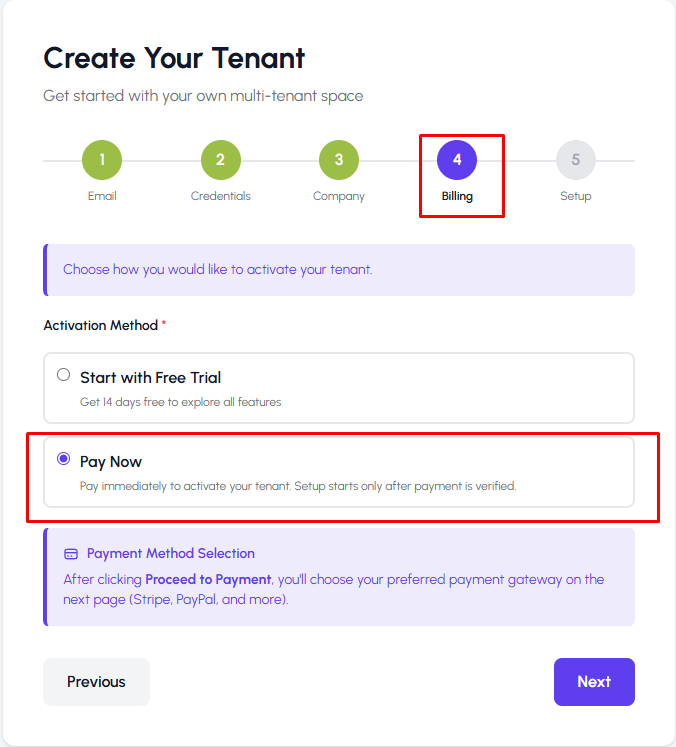
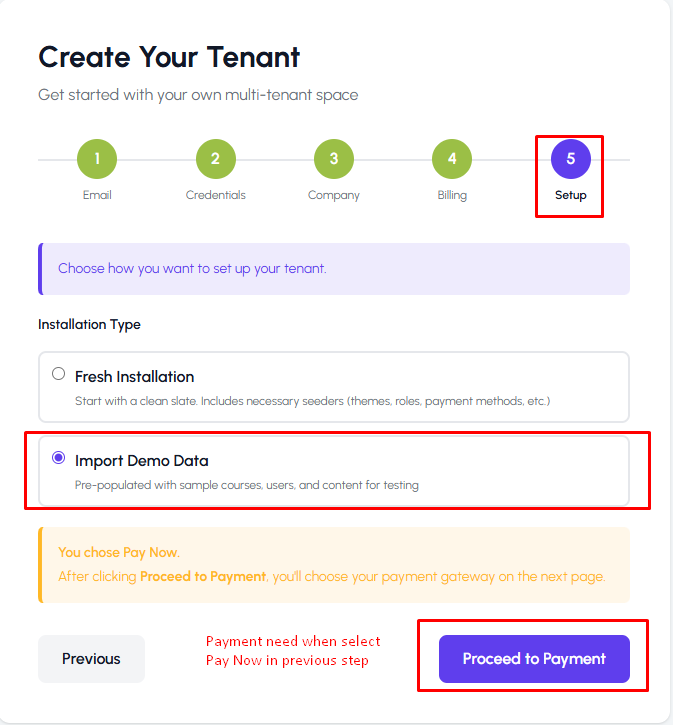
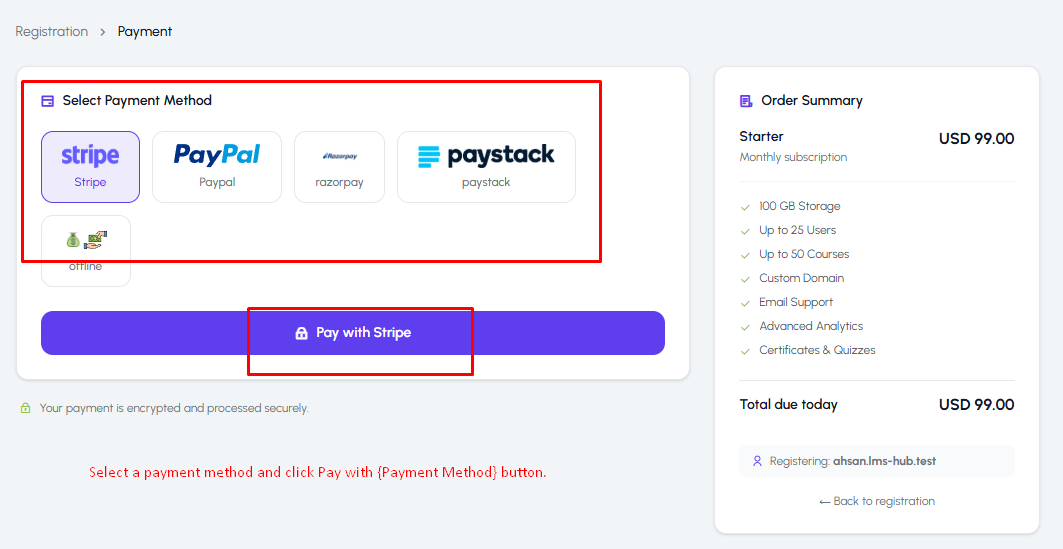
Note: Subdomain availability is checked in real time as the customer types.
Step 03 — LMS Provisioning
After submitting, the system:
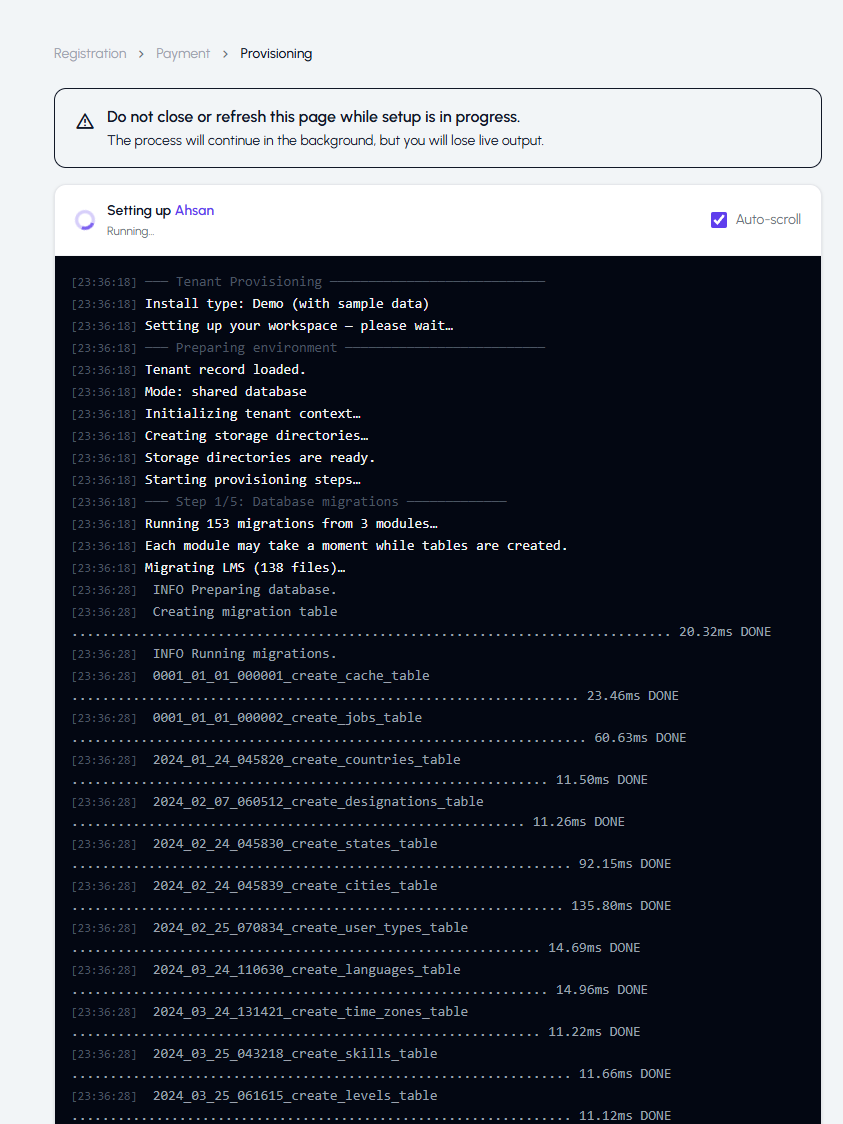
- Creates the tenant record
- Provisions a new LMS database
- Creates the admin account for the tenant
If provisioning is synchronous (TENANT_PROVISIONING_DRIVER=sync), the tenant is redirected to a success page within seconds.
If provisioning is queue-based (TENANT_PROVISIONING_DRIVER=queue), the customer sees a "Setting up your LMS..." page while the background job runs.
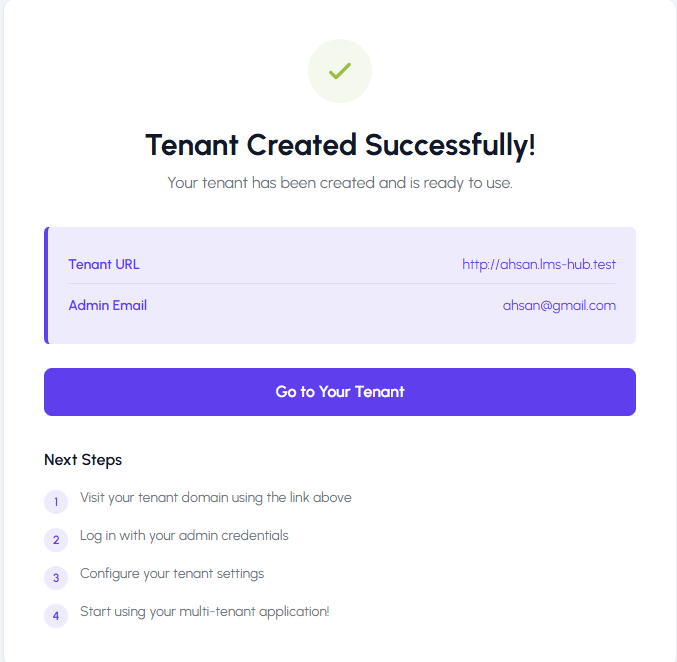
The success page shows:
- The link to the new LMS (
https://acme.yourdomain.com) - Login credentials
Tenant Owner Login
The tenant owner logs in at https://yourdomain.com/tenant/login.
Note: This is separate from the LMS login at
/login(which is for students and instructors). The tenant owner login is for subscription management only.
Tenant Owner Dashboard
After logging in, the owner sees their dashboard at /tenant/dashboard.
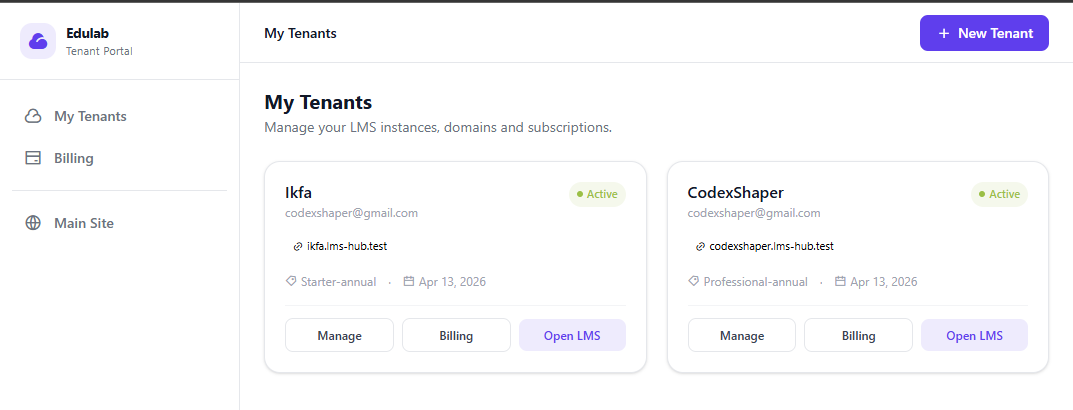
The dashboard shows:
- Current plan and subscription status
- Trial countdown (if on trial)
- Period end date
- Quick links to billing, upgrade, and their LMS
Billing Portal (/billing)
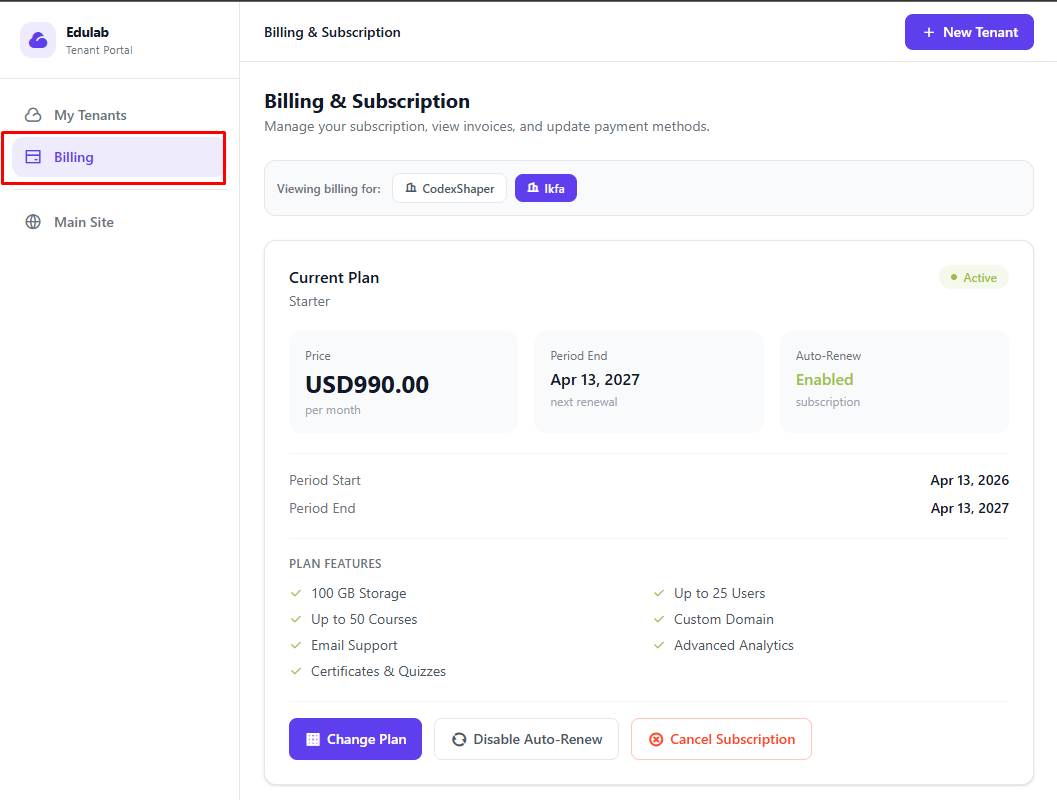
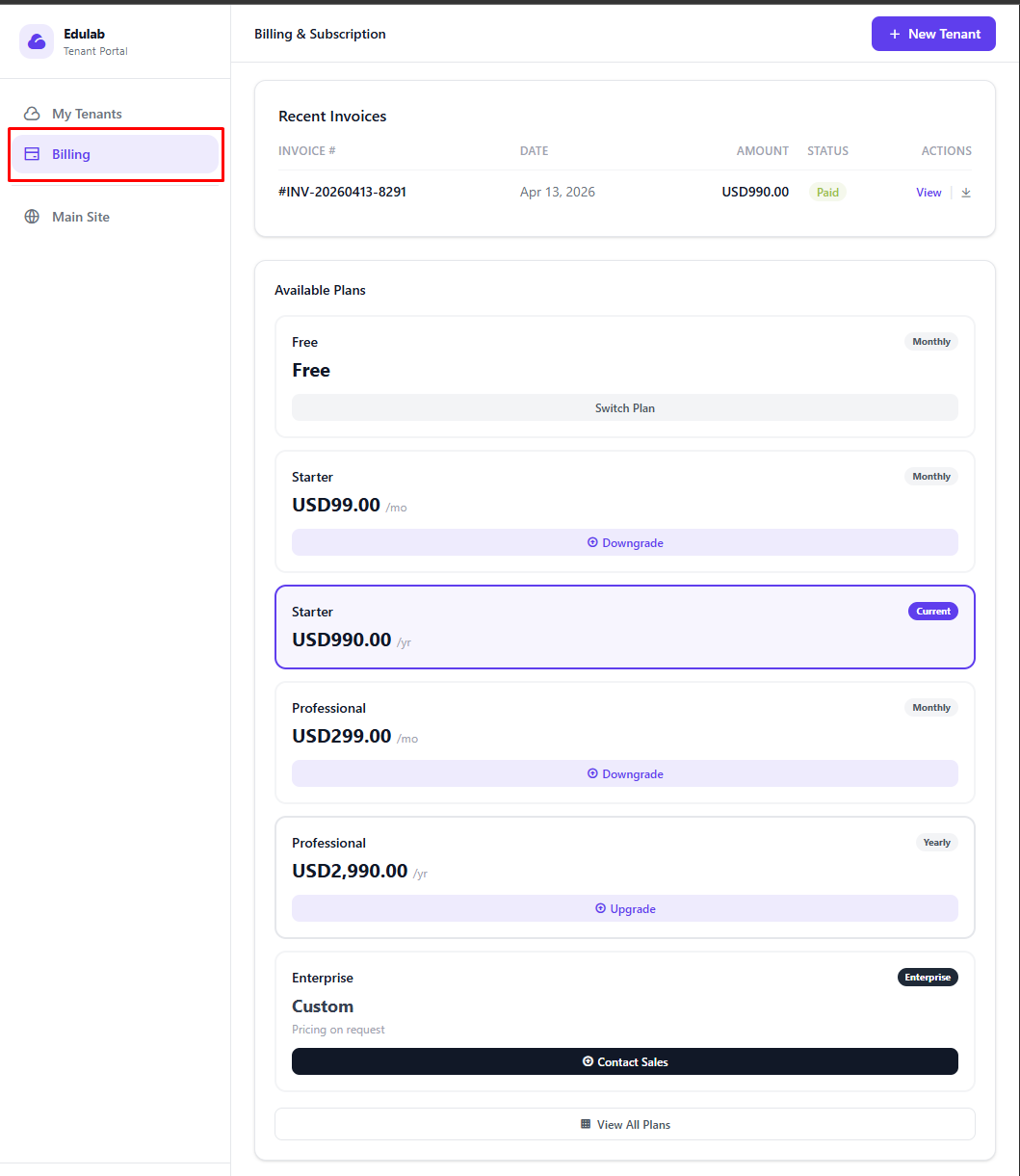
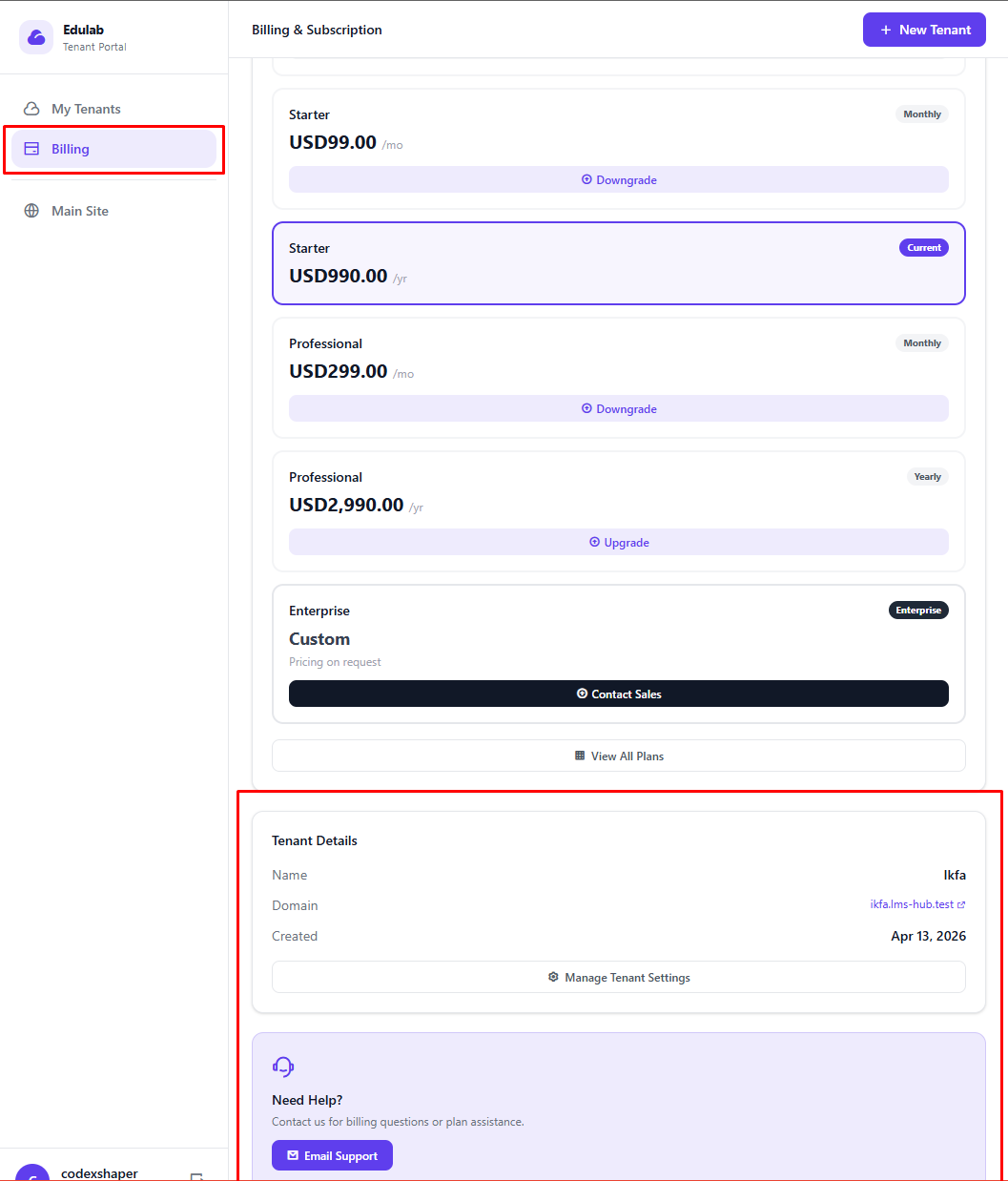
The billing portal gives the tenant owner full visibility and control over their subscription.
Route behavior:
/billingredirects to the first tenant billing profile the user owns./billing/{tenantId}opens billing for a specific tenant.
What They Can See
- Current plan, price, and billing period
- Subscription status badge (Active / Trial / Suspended)
- Auto-renewal toggle
- Invoice history (list of all invoices with download links)
- Payment method details
What They Can Do
| Action | Description |
|---|---|
| Upgrade / Downgrade | Change to a different plan. Redirects to the checkout page |
| Cancel Subscription | Ends the subscription at the end of the current period |
| Toggle Auto-Renew | Enable or disable automatic renewal |
| Download Invoice | Download a PDF invoice for any billing period |
| Pay Now | Initiate payment for an unpaid invoice |
Upgrading / Downgrading a Plan
Click Upgrade Plan from the billing portal. The available plans are listed with pricing.
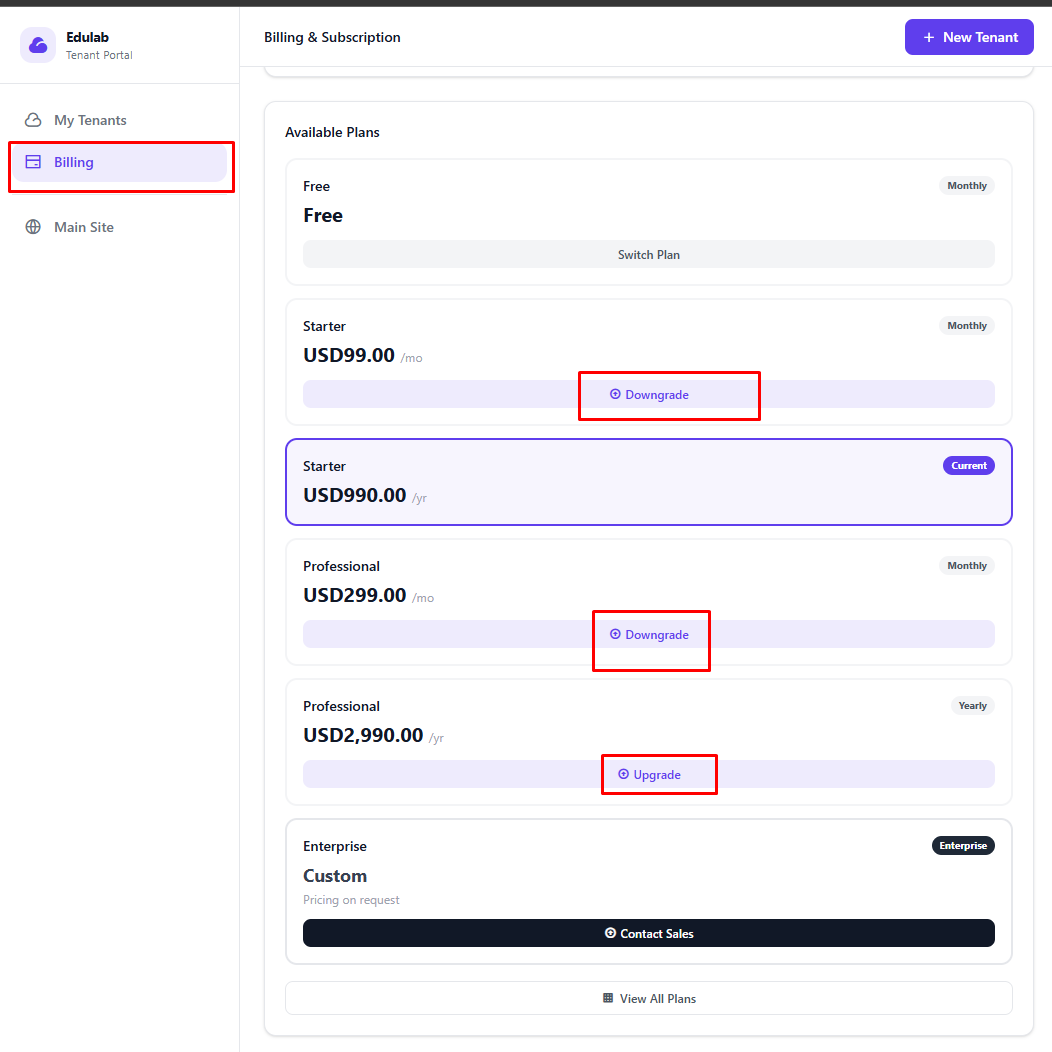
Selecting a plan takes the tenant to the checkout page where they choose a payment gateway and confirm.
After a successful payment:
- The new plan is applied immediately
- A new invoice is generated
- The billing period resets to today
Converting from Trial to Paid
When a trial is active, the billing portal shows a banner: "Your trial ends in X days".
Clicking Activate Paid Plan opens the trial conversion flow. The tenant:
- Selects a target plan
- Selects a payment gateway
- Is redirected to checkout for that exact plan
- Is upgraded only after verified payment success
Enterprise/custom plans:
- Enterprise may appear in plan selection as a custom/contact-sales option.
- Selecting it redirects to your configured contact-sales CTA URL instead of checkout.
Payment Method Reminder
After successful payment, the system remembers the gateway used and preselects it on future checkouts.
Note: full card token vaulting for off-session recurring charge is gateway-specific and may require additional implementation.
Cancelling a Subscription
The tenant owner can cancel from the billing portal by clicking Cancel Subscription and confirming.
Cancellation takes effect at the end of the current billing period. The tenant retains access until then. No further charges are made.
Invoice Download
Every invoice in the billing history has a Download PDF button. This is the same PDF the admin can download from the admin panel.